We will be using a free account from https://home.openweathermap.org, you sign up with an email account and after confirming, you will receive the API from the incoming email. Of course you can create many APIs after logged in.
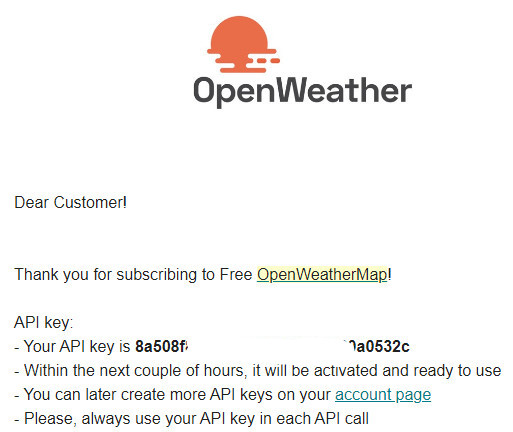
API key from the incoming email
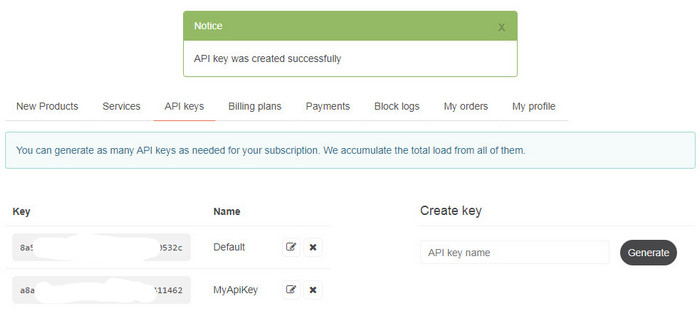
Create API key name with name MyApiKey on home.openweathermap.org page
To display a select list of locations for information, you need latitude and longidute addresses. I assume you have list of coordinates of locations as below:

Note: Also you can refer to how to get the coordinates of other locations here Getting Latitude and Longitude from a Click Event
Once you have the information about the API key, the coordinates are needed. We proceed to get data combining Laravel and VueJS as follows:
Of course you only need to use Javascript is also completely applicable.
1. Routes
You create a file routes/api.php
Parameter lat, lng, timezone (purpose to get the current time of the selected coordinate).
Call the IndexController and index function.
Route::get(‘/weather/{lat}/{lng}/{timezone}’, ‘Weathers\IndexController@index’);
2. Controller
Next, you create a file Weathers\IndexController.php
We have List of pre-created time zones and APIKey, connect to API api.openweathermap.org/data/2.5/weather:
namespace App\Http\Controllers\Api\Weathers;
use Carbon\Carbon;
use Illuminate\Http\Request;
use App\Http\Controllers\Controller;
class IndexController extends Controller
{
/**
* Get Weather
*
* @param Request $request
* @param $lat
* @param $lng
* @param $timezone
* @return array
*/
public function index(Request $request, $lat, $lng, $timezone)
{
// By default, it is set GMT 0
date_default_timezone_set(‘UTC’); // default GMT 0
// List of pre-created time zones
$timezoneList = [
‘newyork’ => ‘America/New_York’,
‘tokyo’ => ‘Asia/Tokyo’,
‘shanghai’ => ‘Asia/Shanghai’,
‘london’ => ‘Europe/London’,
‘paris’ => ‘europe/paris’,
‘rome’ => ‘Europe/Rome’,
‘berlin’ => ‘europe/berlin’,
‘singapore’ => ‘asia/singapore’,
‘newdelhi’ => ‘Asia/Kolkata’,
‘bangkok’ => ‘asia/bangkok’,
‘seoul’ => ‘asia/seoul’,
];
if (!empty($timezone) && !empty($timezoneList[$timezone])) {
date_default_timezone_set($timezoneList[$timezone]);
}
// API is taken from openweathermap, you can put this API in ENV file
$APIKey = “YOUR_API_KEY”;
$curl_options = array(
CURLOPT_URL => “http://api.openweathermap.org/data/2.5/weather?lat=$lat&lon=$lng&lang=en&units=metric&APPID=$APIKey”,
CURLOPT_RETURNTRANSFER => true,
CURLOPT_HEADER => false,
CURLOPT_TIMEOUT => 30,
CURLOPT_CONNECTTIMEOUT => 5
);
$curl = curl_init();
curl_setopt_array( $curl, $curl_options );
$result = curl_exec( $curl );
$result = (array) json_decode($result);
// Get time information by selected location
$currentTime = time();
$weekTime = date(“l g:i a”, $currentTime);
$dmy = date(“jS F, Y”, $currentTime);
return [‘result’ => $result, ‘time’ => [‘weekTime’ => $weekTime, ‘dmy’ => $dmy]];
}
}
3. VueJS
Create a file assets/js/views/Home.vue
<template>
<div class=”col-lg-12 text-center”>
<div class=”text-left border-dash” v-if=”weatherResult”>
<div class=”row”>
<div class=”col-lg-2″>
<select class=”form-control select-location” @change=”onChange($event)” v-model=”key” style=”padding: 5px 0;margin: 0;height: auto;”>
<!– List of coordinates is taken first, with additional timezone parameter –>
<option value=”43.000351,-75.499901,newyork”>New York</option>
<option value=”39.916908,116.397057,shanghai”>Beijing</option>
<option value=”31.222219,121.458061,shanghai”>Shanghai</option>
<option value=”28.61282,77.23114,newdelhi”>New Delhi</option>
<option value=”35.689499,139.691711,tokyo”>Tokyo</option>
<option value=”37.583328,127.0,seoul”>Seoul</option>
<option value=”51.512791,-0.09184,london”>London</option>
<option value=”54.033329,10.45,berlin”>Berlin</option>
<option value=”48.853401,2.3486,paris”>Paris</option>
<option value=”41.894741,12.4839,rome”>Rome</option>
<option value=”1.28967,103.850067,singapore”>Singapore</option>
<option value=”13.87719,100.71991,bangkok”>Bangkok</option>
</select>
</div>
<!– Get weather, current time by location –>
<div class=”col-lg-10″>See weather, current time by location
<button v-on:click=”seeYourLocation” class=”btn btn-success” style=”text-transform: inherit;font-weight: normal;”>See weather your location</button>
</div>
<!– Show result –>
<div class=”col-lg-12″ v-if=”weatherResult”>
<b class=”w_name”>{{ weatherResult.name }}: </b>
<span v-if=”weatherTime” class=”w_time”>{{ weatherTime.weekTime }} – {{ weatherTime.dmy }}</span>
<span class=”w_des” v-if=”weatherResult.weather[0].description” style=”text-transform: capitalize;”>{{ weatherResult.weather[0].description }}. </span>
<img :src=”‘https://openweathermap.org/img/w/’ + weatherResult.weather[0].icon + ‘.png'” class=”w_icon” :alt=”Weather” v-if=”weatherResult.weather[0].icon”>
<span class=”w_temp_max” v-if=”weatherResult.main.temp_max”>Max: {{ weatherResult.main.temp_max }}°C. </span>
<span class=”w_temp_min” v-if=”weatherResult.main.temp_min”>Min: {{ weatherResult.main.temp_min }}°C. </span>
<span class=”w_humidity” v-if=”weatherResult.main.humidity”>Humidity: {{ weatherResult.main.humidity }} %. </span>
<span class=”w_wind” v-if=”weatherResult.wind.speed”>Wind: {{ weatherResult.wind.speed }} km/h.</span>
</div>
</div>
</div>
</div>
</template>
<script type=”text/javascript”>
// You can use axios to call the API, but in this article I will not use it
// import axios from ‘axios’;
export default {
data () {
return {
error: null,
weatherResult: ”, weatherTime: ”,
key: ‘43.000351,-75.499901,newyork’, lat: “43.000351”, lng: “-75.499901”, tzone: “newyork”, // The default setting is New York selected
};
},
created() {
// weather
this.weather();
},
methods: {
onChange(event) {
var latLng = event.target.value.split(‘,’);
var lat = latLng[0];
var lng = latLng[1];
var tzone = latLng[2];
this.lat = lat;
this.lng = lng;
this.tzone = tzone;
this.getWeather(this.lat, this.lng, this.tzone);
},
seeYourLocation: function (event) {
var lat = this.lat;
var lng = this.lng;
var tzone = ‘newyork’;
function getLocation() {
if (navigator.geolocation) {
navigator.geolocation.getCurrentPosition(showPosition);
} else {
console.log(“Geolocation is not supported by this browser”);
}
}
function showPosition(position) {
// console.log(“position”, position);
// convert time from timestamp
// console.log(“this.position”, position);
var w_time = new Date(position.timestamp);
lat = position.coords.latitude;
lng = position.coords.longitude;
var api = “/api/weather/” + lat + “/” + lng + “/” + tzone;
axios
.get(api)
.then(response => {
// this.weatherResult = response.data.result;
// this.weatherTime = response.data.time;
var result = response.data.result;
$(‘.w_name’).text(result.name + ‘ : ‘);
$(‘.w_time’).text(w_time);
$(‘.w_temp_max’).text(‘Max: ‘ + result.main.temp_max + ‘°C. ‘);
$(‘.w_temp_min’).text(‘Min: ‘ + result.main.temp_min + ‘°C.’);
$(‘.w_humidity’).text(‘Humidity: ‘ + result.main.humidity + ‘%’);
$(‘.w_wind’).text(‘Wind: ‘ + result.wind.speed + ‘km/h.’);
$(‘.w_des’).text(result.weather[0].description);
$(“.w_icon”).attr(“src”, ‘https://openweathermap.org/img/w/’ + result.weather[0].icon + ‘.png’);
$(‘.select-location’).val(”);
}).catch(error => {
console.log(“error”, error);
});
}
getLocation();
},
weather() {
this.getWeather(this.lat, this.lng, this.tzone);
},
getWeather: function (lat, lng, tzone) {
var api = “/api/weather/” + lat + “/” + lng + “/” + tzone;
axios
.get(api)
.then(response => {
// console.log(“aaa”, response);
var result = response.data.result;
$(‘.w_name’).text(result.name + ‘ : ‘);
$(‘.w_time’).text(response.data.time.weekTime + ‘ – ‘ + response.data.time.dmy);
$(‘.w_temp_max’).text(‘Max: ‘ + result.main.temp_max + ‘°C. ‘);
$(‘.w_temp_min’).text(‘Min: ‘ + result.main.temp_min + ‘°C.’);
$(‘.w_humidity’).text(‘Humidity: ‘ + result.main.humidity + ‘%’);
$(‘.w_wind’).text(‘Wind: ‘ + result.wind.speed + ‘km/h.’);
$(‘.w_des’).text(result.weather[0].description);
$(“.w_icon”).attr(“src”, ‘https://openweathermap.org/img/w/’ + result.weather[0].icon + ‘.png’);
this.weatherResult = response.data.result;
this.weatherTime = response.data.time;
$(‘.select-location’).val(”);
}).catch(error => {
console.log(“error”, error);
});
}
}
}
</script>
4. Run webpack
Run watch to test
npm run watch
When you select a place from the list, the results will be displayed automatically. When you want to see information in your area, select [See weather your location] to get the results.
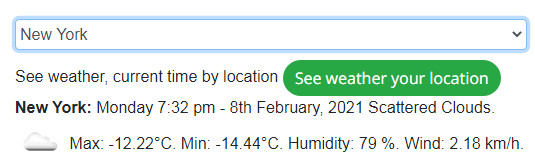
Weather information, time in New York
5. Conclusion
In the above simple example we have got the weather, temperature, time information of the selected coordinates, you can simply javascript and html to get the result like above.
Thanks for reading the article.